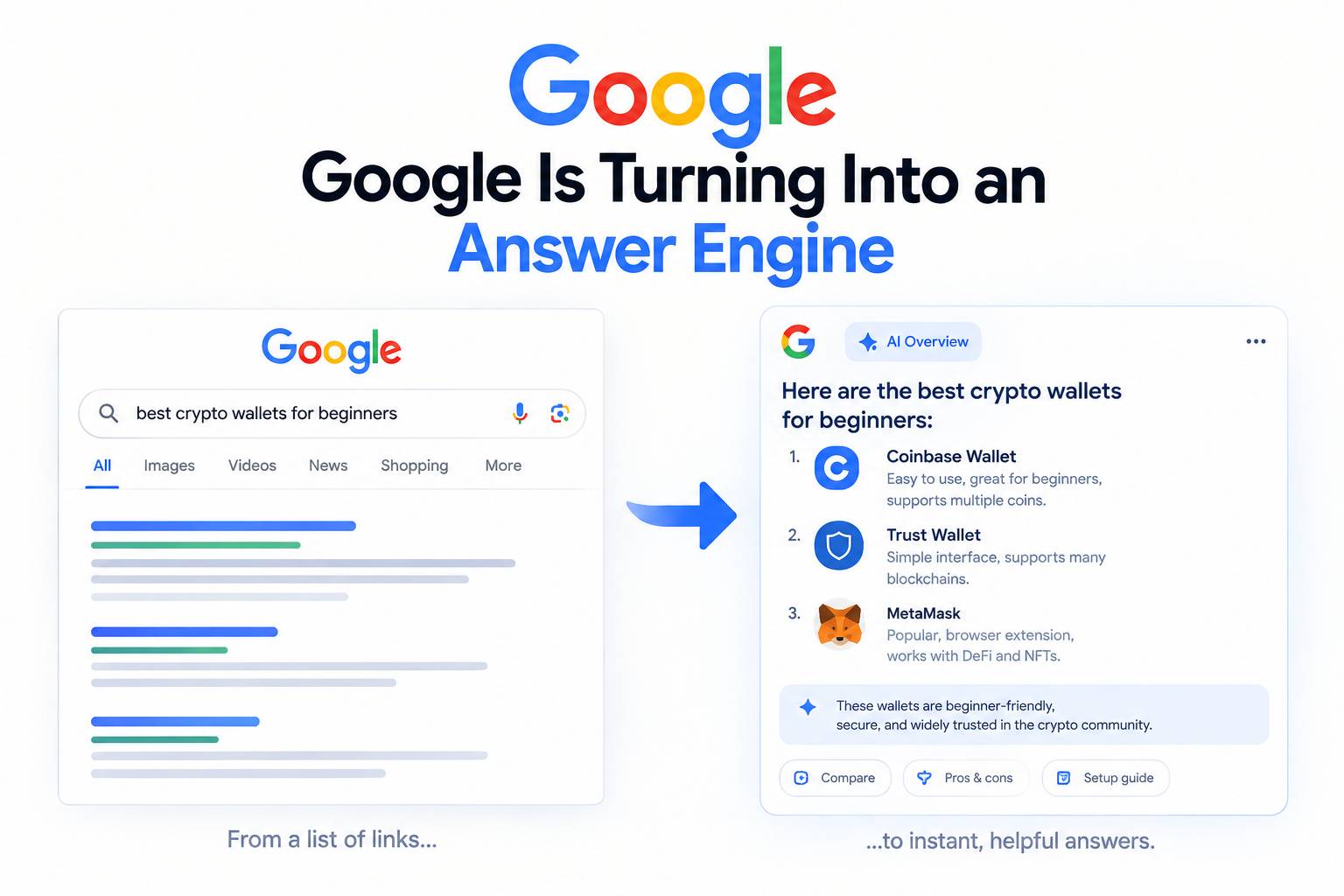


Google AI Overviews are now the first thing you see on a lot of searches. That sounds helpful, until you are trying to do real research and Google drops a big summary on top of the sources.
Todays blog shows what you can and cannot turn off, plus the fastest workarounds people use right now. The honest answer is simple. You cannot disable AI Overviews for everyone, because Google treats them as part of Search. Still, you can force a Web-only view, reduce AI features in Labs, and hide the block so you can move faster.
_____________________________________________________________
Quick answers – jump to section
- What you can and cannot disable
- Option 1: Use the Web filter
- Option 2: Turn off AI in Search in Labs
- Option 3: Set a Web-only search shortcut in Chrome
- Option 4: Hide AI Overviews with a blocker
- Why Web3 marketers should care
- What to do instead of fighting the UI
- Final Thoughts
- Frequently Asked Questions
_____________________________________________________________
What you can and cannot disable
Google’s public line is consistent. AI Overviews are treated like a built-in Search feature, so there is no clean off switch that removes them for good. That is why so many people keep asking the same question on forums, then get annoyed when the answer is ‘you can’t’.
The more useful way to think about it is this. You are not trying to change Google. You are trying to change what you see, so you can work. That is where filters, shortcuts, and blockers come in.
_____________________________________________________________
Option 1: Use the Web filter
This is the simplest move, and it works on any device. You search like normal, then you switch to the Web filter. People like it because it gets you back to a plain list of links, which means you spend less time scrolling past blocks you did not ask for.
The downside is repetition. You have to switch it on again and again. Still, if you are doing research for a token launch page, a compliance explainer, or a partner deck, that extra click is often worth it.
_____________________________________________________________
Option 2: Turn off AI in Search in Labs
A lot of people ask if Labs is the fix. It can help, but it is not a magic button. Labs controls experiments, and Google can still show AI Overviews because those are not always treated as an experiment.
Even so, turning off AI in Search in Labs can reduce how much AI clutter you see while you work. It is a decent choice if you want fewer surprises while you are trying to get through research quickly.
_____________________________________________________________
Option 3: Set a Web-only search shortcut in Chrome

This is the workaround people keep sharing because it feels close to a real default. The idea is simple. You create a custom search shortcut in Chrome that sends every query to a Web-only results view.
In a lot of threads, you will see people talk about adding a parameter like udm=14 to the search URL, because it tends to push Google into a Web-style results page.
If you want the SEO logic behind why Google behaves differently when it thinks your query is about entities and intent, this post on how entity-based SEO works for Web3 teams breaks it down simply.
_____________________________________________________________
Option 4: Hide AI Overviews with a blocker
Some people do not care about changing the results mode. They just want the box gone. That is why you see so many posts about uBlock Origin filters and browser extensions that hide the AI Overview container.
One warning though. These filters can break, because Google changes class names and page structure. So treat blockers like a convenience, not a permanent fix.
_____________________________________________________________
Why Web3 marketers should care
In Web3, attention is already expensive. Your buyer is sceptical, your product is hard to explain, and half the market assumes you are selling smoke. AI Overviews add another problem. Google can answer the question before the click happens.
That means you can lose traffic even when you rank. At the same time, you can gain brand mentions inside the overview if Google uses your page as a source.
If you want the playbook for that, this post on earning AI citations and brand mentions in Web3 is the cleanest starting point.
_____________________________________________________________
What to do instead of fighting the UI
Turning off AI Overviews is a personal workflow choice. Your buyers will still see them, so your job is to make content that works in a world where clicks drop.
Start with pages that answer one question clearly, then back it up with a simple example. Add a short FAQ using the exact phrases people type. Keep definitions tight, and avoid crypto slang.
If you want a simple way to tighten your internal structure at the same time, this post on internal linking with ChatGPT will help you do it without overthinking it.
_____________________________________________________________
Final Thoughts
You cannot fully disable Google AI Overviews for everyone. Still, you can reduce them in your own workflow using the Web filter, Labs settings, a Chrome shortcut, or a blocker.
Then zoom out. In Web3 marketing, the goal is not to complain about the box. The goal is to get used as a source inside the box.
If you want a simple system for keeping your pages connected so Google has more context to pull from, this guide on mastering internal linking with Link Assistant tips is a solid add-on.
_____________________________________________________________
Frequently Asked Questions
Can I disable Google AI Overviews for good?
No, not in a permanent way for all users. Google treats them as part of Search, so there is no global off switch.
You can still reduce how often you see them by using the Web filter, changing your default search shortcut, or hiding the block with a blocker.
Does turning off AI in Search in Labs remove AI Overviews?
It can reduce some AI features and experiments, but it may not remove every overview.
If you want the cleanest view, the Web filter is usually the most consistent option.
Why do people keep mentioning udm=14?
Because adding udm=14 to a Google search URL often pushes results into a Web-style view.
Google can change how that works at any time, so treat it like a handy trick, not a promise.
Are blockers a safe fix?
They can be useful for speed, but they can also break when Google changes the page layout.
If you rely on a blocker, have a backup option like the Web filter or a Chrome shortcut.
_________________________________________________________________
Download the free Growth Engine Blueprint here and copy how we generate leads for our clients.
Want to know how we can guarantee a mighty boost to your traffic, rank, reputation and authority in you niche?
Tap here to chat to me and I’ll show you how we make it happen.
If you’ve enjoyed reading today’s blog, please share our blog link below.
Do you have a blog on business and marketing that you’d like to share on influxjuice.com/blog? Contact me at rob@influxjuice.com.
Latest Blogs
- Why YouTube Plays Such a Big Role in Web3 Research and Buyer Confidence
- How to Edit Professional Videos for Your Business on a Budget
- The Fake Podcast Scam: How a LinkedIn Invitation Nearly Put Malware on My Mac
- Why Google Is Turning Into an Answer Engine, and What It Means for Web3 Teams
- Why Web3 Teams Are Turning to Gamma to Build Decks and Docs Faster